Your Android phone holds everything: bank accounts, private messages, photos, work emails, and passwords. Yet most people still rely on a 4-digit PIN and nothing else. In 2026, that is no longer enough. Hackers, phishing scams, and sophisticated theft techniques have all evolved — and so should your security game plan.
This complete guide walks you through every layer of Android security — from your lock screen to your Wi-Fi habits — in plain, actionable language. No tech jargon, no fluff. Just steps you can take today to lock down your device.
1. Set Up a Strong Lock Screen
Your lock screen serves as the gateway to your entire digital life. A weak lock—like a simple pattern or a 4-digit PIN—can be cracked or even guessed by smudge marks on the screen.
Here is how to do it right:
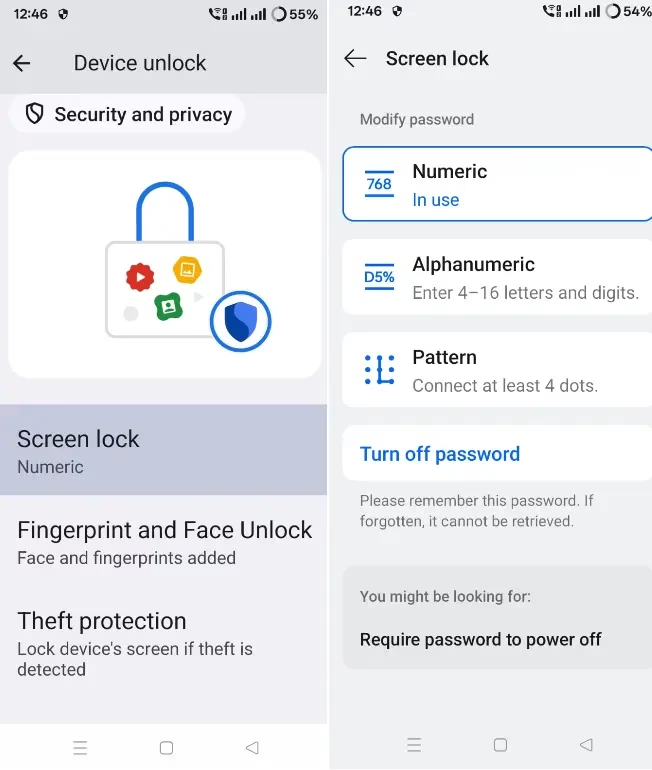
Choose the Right Lock Type
- Alphanumeric password (Best): Use at least 8 characters mixing letters, numbers, and symbols.
- 6-digit PIN (Good): Much harder to brute-force than a 4-digit PIN.
- Pattern (Avoid): Leaves smudge trails visible under light.
- Face unlock (convenient, not the safest): Can be spoofed on some phones. Use it with a PIN backup.
- Fingerprint (Great): Fast, reliable, and much harder to fake than a pattern.
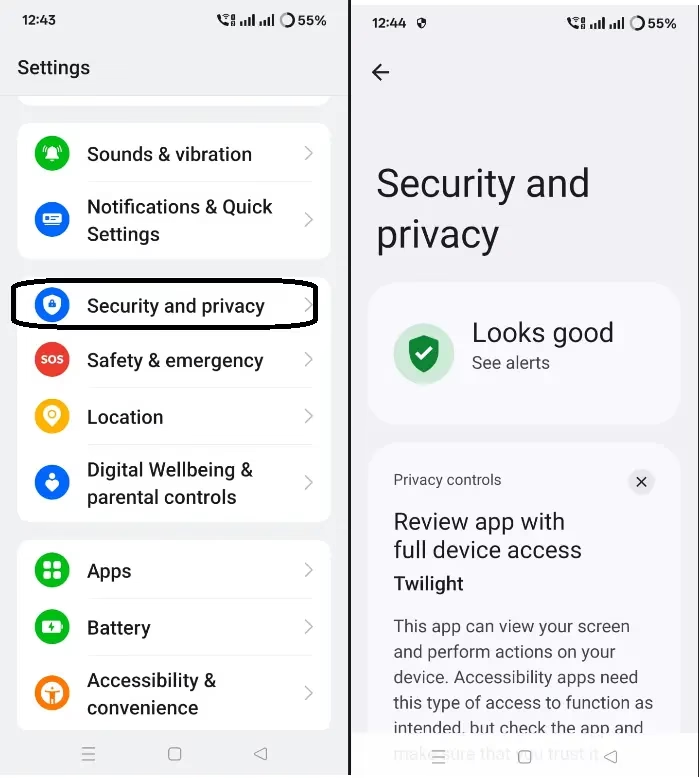
👉 Go to Settings → Security and privacy → Device unlock → Screen Lock
Enable Lockdown Mode
Android has a hidden Lockdown Mode that instantly disables biometrics, Smart Lock, and notifications — only your PIN can unlock the phone. Enable it so the option appears in your power menu.
👉 Go to: Settings → Security → More Security Settings → Show lockdown option.
💡 Pro Tip: If you think someone is watching your screen or might force you to unlock with your fingerprint, quickly press the power button five times to trigger an emergency mode or lockdown on most Android phones.
2. Secure Your Google Account
Your Google Account is the master key to your Android phone. If it is compromised, everything else follows. Take these steps immediately:
- Use a strong, unique password — never reuse a password from another site.
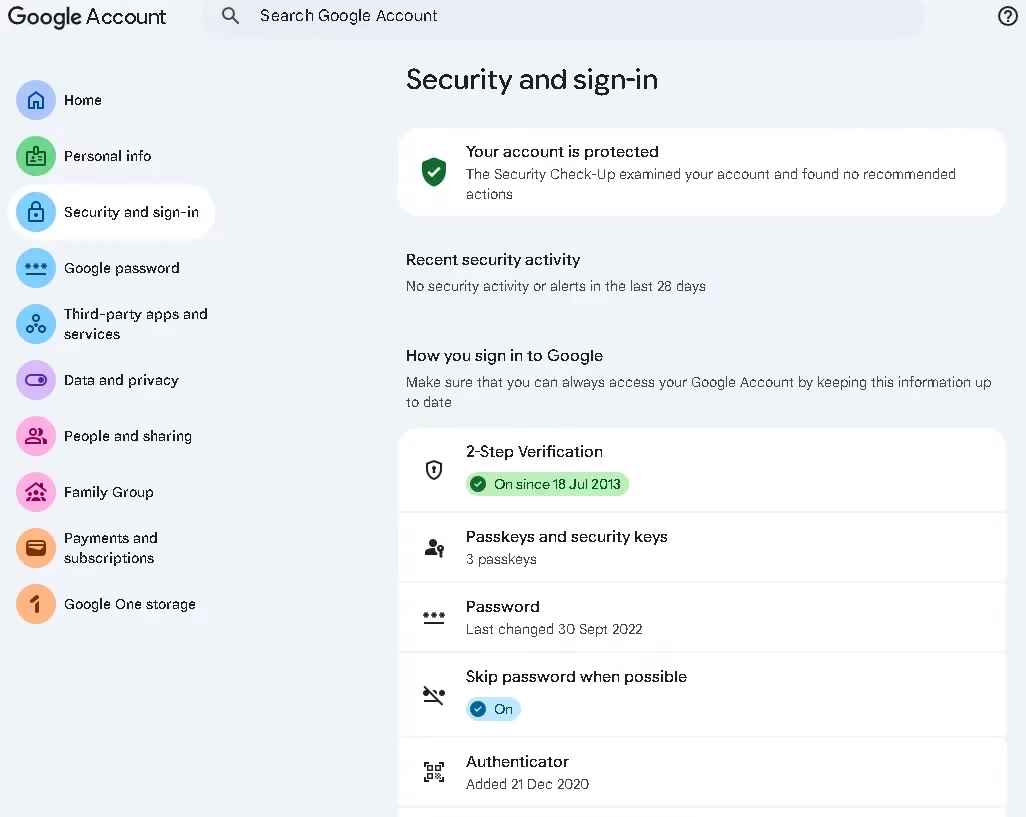
- Turn on 2-Step Verification — go to myaccount.google.com → Security → 2-Step Verification.
- Switch to Passkeys — Google’s phishing-resistant login standard that works even faster than passwords.
- Review account activity — check for unfamiliar logins under Security → Your Devices.
- Use Sign in with Google — instead of creating accounts with third-party apps so your credentials stay protected even if those apps are breached.
👉 Visit myaccount.google.com/security to run a full Security Checkup right now.
3. Keep Android & Apps Updated
Software updates are not just about new features — they patch security holes that hackers actively exploit. In early 2026, Google’s security bulletin addressed at least two critical vulnerabilities that hackers had already exploited in real-world attacks before the patch’s release. Devices without updates were exposed for weeks.
Check for System Updates
👉 Settings → System → System Update → Check for updates
Check Your Security Patch Level
👉 Settings → About Phone → Android Version (look for “Android Security Patch Level”)
Update Your Apps
👉 Google Play Store → Profile icon → Manage Apps & Device → Update All
📌 Note for Indian users: If you own a budget Android phone from brands like Realme, Itel, or older Redmi models, security patches can arrive weeks to months late. Consider this when choosing your next phone — brands like Google Pixel, Samsung (flagship), and OnePlus are faster with updates.
4. Manage App Permissions Carefully
Many apps request far more permissions than they actually need. A flashlight app has no business accessing your contacts or microphone. Here is how to take back control:
Review All App Permissions
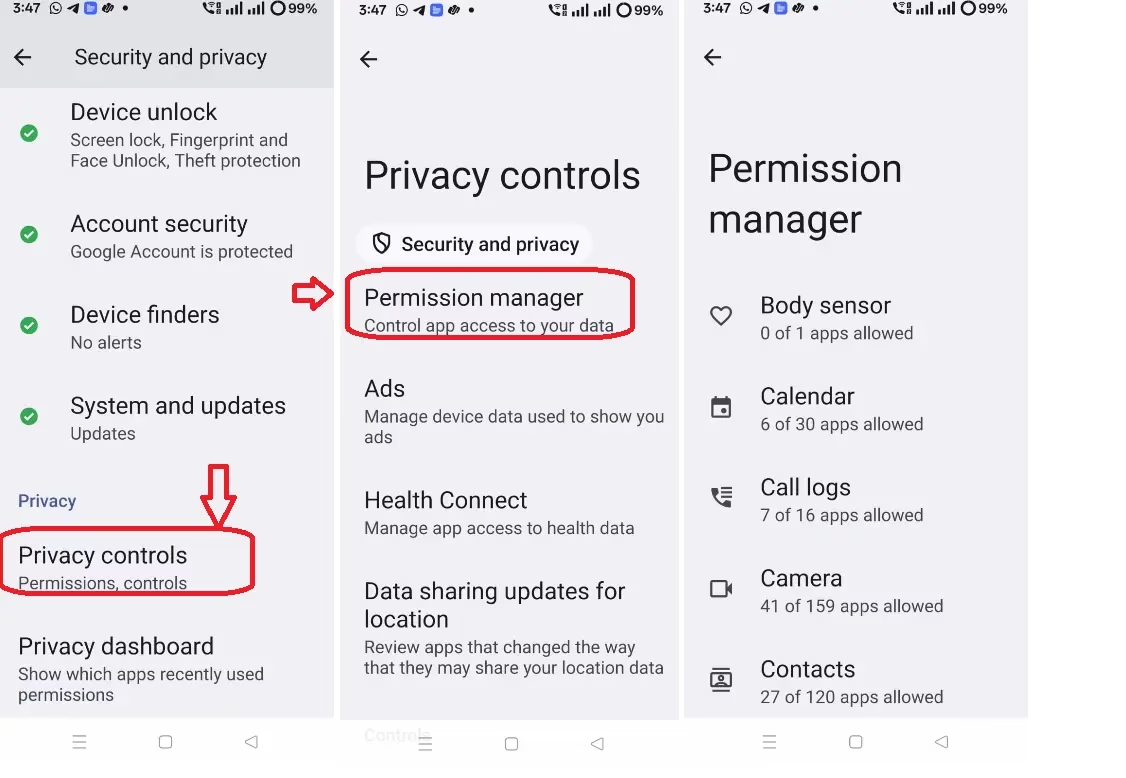
👉 Settings → Security & Privacy →Privacy control → Permission Manager
Review which apps have access to the camera, microphone, location, contacts, and SMS. Revoke anything that seems excessive.
Key Rules to Follow
- Grant location access only “While “Using”—never “All the Time” unless absolutely necessary.
- Deny microphone and camera access to apps that clearly do not need it (games, calculators, etc.).
- Enable auto-reset permissions for unused apps—Android will automatically revoke permissions from apps you haven’t opened in months.
👉 To enable Auto-Reset: Settings → Apps → [Select an App] → Permissions → “Remove permissions if app is unused”
Use One-Time Permissions
Android lets you grant permissions for just a single-use session. When an app asks for the camera or location, choose “Only This Time” instead of “Allow.”
Few Technical Nuances:
-
UI Variation: Depending on your device manufacturer (Samsung, Google, Xiaomi, etc.), the menu names might vary slightly. For example, it might be called “Apps” or “Security & Privacy.”
-
App Functionality: Occasionally, revoking a permission can cause an app to crash if it wasn’t coded to handle “denied” states gracefully. If an app stops working after you revoke a permission, you may need to re-enable it or find a better-coded alternative.
-
Safety Features: Some apps (like maps or emergency alerts) legitimately require “All the Time” location access to provide real-time updates or safety notifications.
5. Enable Google Play Protect
Google Play Protect is Android’s built-in malware scanner. It continuously monitors all apps on your device—even ones installed from outside the Play Store—for harmful behavior.
👉 Open the Google Play Store → Tap your profile icon → Play Protect → Tap “Scan”
Make sure it shows “No harmful apps found” and that the feature is turned on. If it is off, turn it on immediately.
In Android 2026 versions, Play Protect now includes real-time app scanning—even detecting threats that were not in its database at the time of installation.

6. Use Two-Factor Authentication (2FA) Everywhere
A password alone is not enough. Two-Factor Authentication (2FA) adds a second verification step — so even if your password is stolen, attackers cannot get in.
Types of 2FA (Best to Worst)
- Hardware Security Key (e.g., YubiKey) — Most secure, phishing-proof.
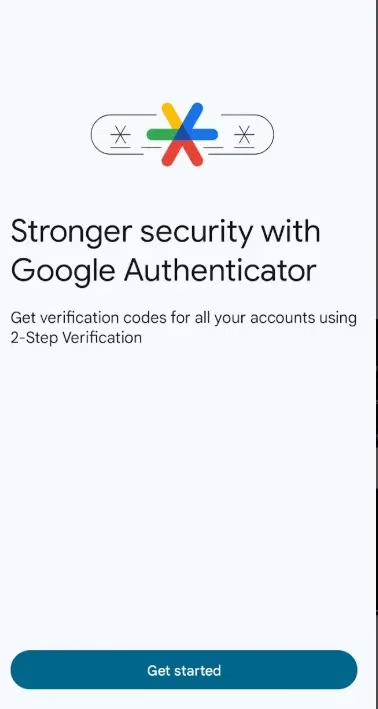
- Authenticator apps, such as Google Authenticator and Authy, are very secure and work offline.
- SMS OTP — Better than nothing, but vulnerable to SIM swap attacks.
Enable 2FA on all accounts that support it: your email, banking apps, social media, and shopping accounts.
⚠️ SIM Swap Warning for Indian Users: Fraudsters can call your telecom operator and convince them to port your number to a new SIM. This lets them intercept OTPs for banking. If you receive unexpected messages about your SIM being deactivated, call your operator immediately. Consider switching to eSIM if your phone supports it — eSIM cannot be physically removed or swapped.
7. Enable Full Device Encryption
Encryption scrambles your data so it becomes unreadable without your password. Modern phones (Android 10+) no longer use “full-disk encryption.” They use File-Based Encryption (FBE).
FBE is superior because it allows different parts of your phone to be encrypted with different keys.This is what makes features like “Direct Boot” possible—where your alarms and calls still work even if your phone reboots in your pocket and you haven’t entered your PIN yet.
To verify your encryption status:
-
Pixel / Stock Android 16:
Settings→Security & privacy→More security settings. You’ll rarely see an “Enable” button; instead, you’ll see “Advanced Protection” or “Trust Agents” that confirm your device’s security health. -
Samsung (One UI 8.0):
Settings→Security and privacy→More security settings→Enhanced data protection.
Important : If your phone doesn’t say it’s encrypted in 2026, it likely means you’re using an ancient device (pre-2019) or a very budget-friendly, non-certified model. On any modern flagship or mid-range phone, you won’t even find a “toggle” to enable it—it’s baked into the system.
Also use end-to-end encrypted messaging apps like Signal or WhatsApp for sensitive conversations—standard SMS is not encrypted.
8. Set Up Google Find My Device
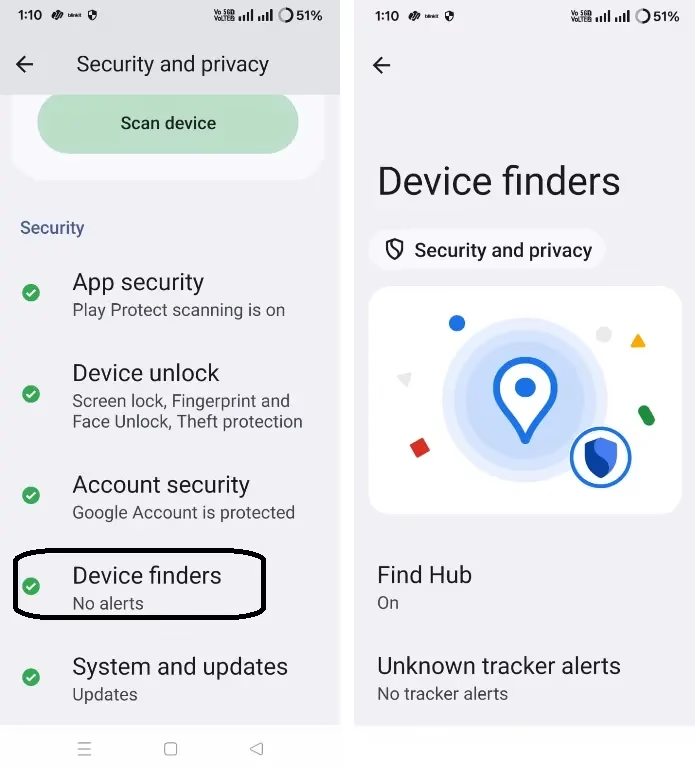
If your phone is lost or stolen, Find My Device lets you locate, lock, or remotely wipe it — before a thief can access your data.
👉 Settings → Security → Find My Device → Turn On
While the path provided is the “stock Android” standard, your mileage may vary depending on your phone’s manufacturer:
Also ensure that these settings are active for Find My Device to work:
- Location is enabled
- Phone is connected to a Google account.
- Mobile data or Wi-Fi is on
In 2026, Google’s Find My Device network also supports offline finding — your phone’s Bluetooth beacon can be picked up by other Android devices in the network, even if your phone is offline or powered off.
👉 To enable offline finding: Settings → Security → Find My Device → “With network in all areas”
📝 Quick Step: Dial *#06# on your phone to get your IMEI number. Please make sure to note it down and keep it in a secure place This is essential for filing a police report if your phone is stolen.
9. Use a VPN on Public Wi-Fi
Free public Wi-Fi at cafes, airports, and malls is a goldmine for attackers. They can set up fake Wi-Fi hotspots or intercept unencrypted traffic to steal your data. A VPN (Virtual Private Network) encrypts all internet traffic leaving your phone, making it unreadable even on compromised networks.
Recommended VPNs for Android
- ProtonVPN — Swiss-based, strong privacy policy, free tier available
- NordVPN — Fast, reliable, good for Indian users with local servers
- Mullvad — Maximum privacy, no logs, anonymous accounts
Avoid free VPNs from unknown developers — many of them log and sell your data, which defeats the entire purpose.

10. Advanced Anti-Theft Features in 2026
Android in 2026 ships with some genuinely impressive new anti-theft tools. Here is what to enable:
Identity Check (Biometric Gating)
This feature requires a biometric scan (face or fingerprint) when you try to access sensitive settings outside your trusted locations (like home or work). Even if a thief watches you enter your PIN, they cannot change your Google password or access banking apps away from your trusted zone.
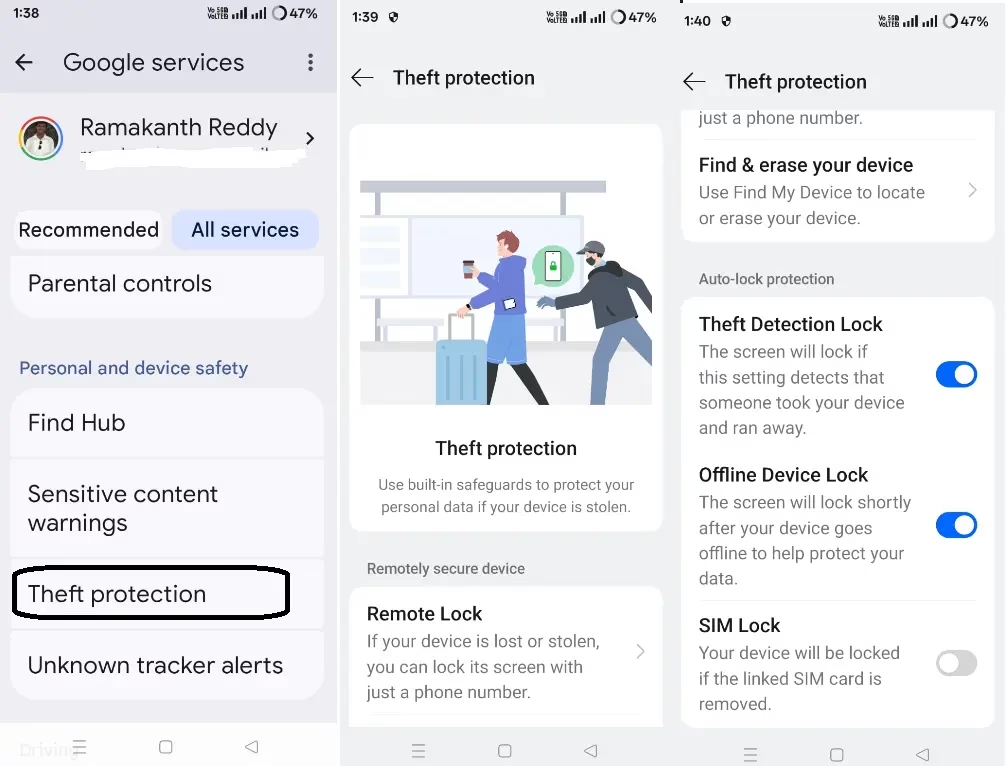
👉 Settings → Google → All services → Personal & device safety → Theft protection.
Theft Detection Lock
Using on-device AI and motion sensors, Android can now detect if your phone is suddenly snatched and immediately locks the screen before the thief can access anything.
👉 Settings → Google → All services → Personal & device safety → Theft protection → Theft Detection Lock → Enable
Automatic Reboot (Before First Unlock Protection)
Android can now auto-restart your phone after a set period of inactivity. After a reboot, encryption keys are not in memory—making forensic data extraction extremely difficult for even advanced tools. This protects seized or lost devices.
👉 Settings → Security → Automatic Reboot → Set to 3 days
Advanced Protection Mode
This one-tap security boost restricts app installs to the Play Store only, enables stricter malware scanning, and blocks insecure 2G network connections.
👉 Settings → Security & privacy → Advanced Protection.
Quick Tip: If you can’t find these exact paths, just search for “Theft protection” in your Settings search bar. Google consolidated most of these into one dashboard for 2026 to make them easier to find.
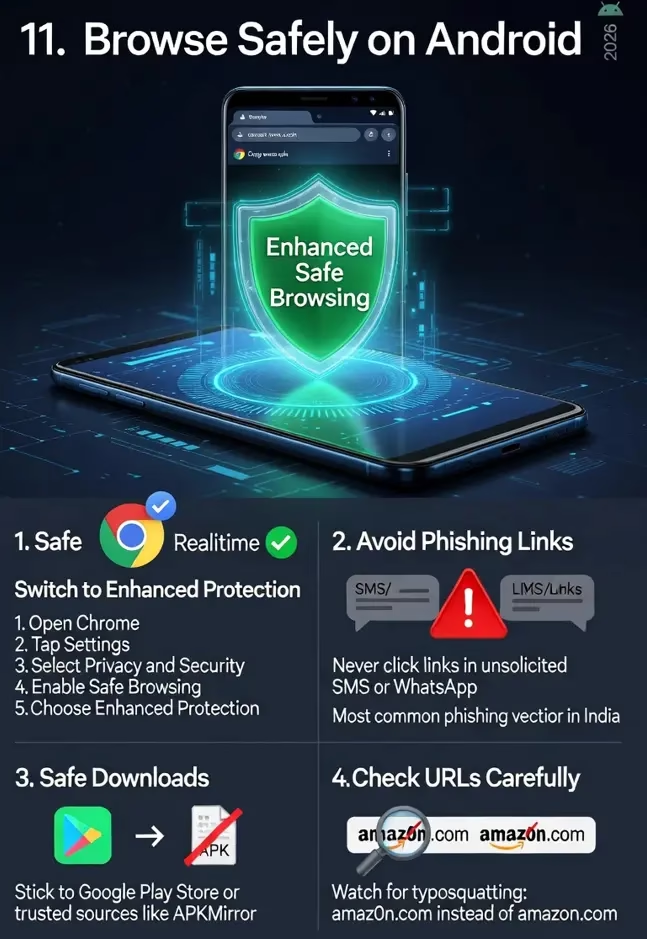
11. Browse Safely on Android
- Switch Chrome to Enhanced Safe Browsing: Chrome → Settings → Privacy and Security → Safe Browsing → Enhanced Protection. This checks URLs in real-time against Google’s phishing database.
- Never click links in unsolicited SMS or WhatsApp messages — this is the most common phishing vector in India.
- Avoid downloading APK files from random websites. Stick to the Google Play Store or trusted sources, like APKMirror (for open-source apps).
- Check the URL bar carefully before entering passwords—fake sites often use domains like amaz0n.com (swapping “o” for a zero) instead of amazon.com
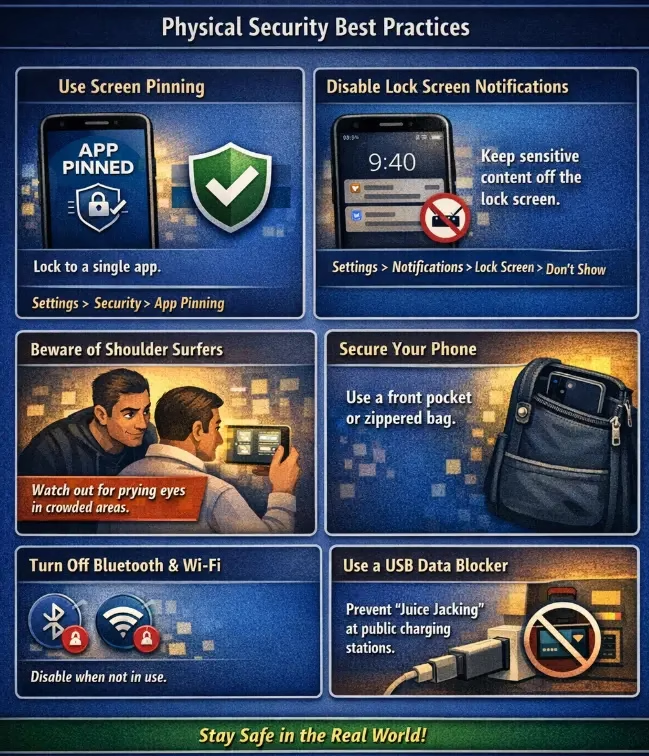
12. Physical Security Best Practices
Digital security is only one aspect of the overall picture. Real-world habits matter too:
- Use Screen Pinning when handing your phone to someone else: Settings → Security → Advanced → App Pinning. This locks them into a single app.
- Disable lock screen notifications — sensitive content (OTPs, messages) should not be visible on a locked screen: Settings → Notifications → Lock Screen → “Don’t Show Notifications.”
- Be aware of shoulder surfers in crowded places like metro stations and coffee shops.
- Keep your phone in a front pocket or a zippered bag in high-density public areas.
- Disable Bluetooth and Wi-Fi when not in use to reduce your attack surface.
- Use a USB data blocker (PortaPow or similar) when charging at public USB ports to prevent “juice jacking.”
✅ Android Security Quick Checklist
- ☐ Lock screen set to alphanumeric password or 6-digit PIN
- ☐ Lockdown Mode enabled in power menu
- ☐ Google Account Security Checkup completed
- ☐ 2-Step Verification enabled on Google Account
- ☐ Android OS and all apps updated
- ☐ App permissions reviewed and trimmed
- ☐ Auto-Reset Permissions enabled for unused apps
- ☐ Google Play Protect active and last scan recent
- ☐ Find My Device turned on with offline finding enabled
- ☐ IMEI number noted and stored safely
- ☐ Encryption status confirmed (“Encrypted”)
- ☐ Identity Check (Biometric Gating) enabled
- ☐ Theft Detection Lock turned on
- ☐ Automatic Reboot configured (3 days)
- ☐ VPN installed for public Wi-Fi use
- ☐ Enhanced Safe Browsing enabled in Chrome
- ☐ Lock screen notifications hidden
- ☐ Screen Pinning enabled for shared use
Android security does not have to be complicated. Spend 30 minutes going through this checklist today — and you will dramatically reduce your risk of data theft, phishing, and device compromise. Start with the lock screen and Google Account (Steps 1 and 2), and work your way down the list.
Have questions or tips of your own? Drop them in the comments below. And if this guide helped you, share it with a friend who might still be running on default settings!
Frequently Asked Questions
Is Android safe to use for banking?
Yes — Android is safe for banking as long as you follow security best practices: use a strong lock screen, enable 2FA, keep the OS updated, and only install banking apps directly from the Google Play Store. Avoid banking on public Wi-Fi without a VPN.
How do I know if my Android phone has been hacked?
Common signs include unexpected battery drain, slow performance, apps you did not install, unusual data usage, and messages you did not send. Run a Google Play Protect scan, remove suspicious apps, change your Google Account password from another device, and factory reset if problems persist.
Should I use a VPN all the time on Android?
It is especially important on public or untrusted Wi-Fi networks. On your home network with a secure router, it is optional — but a VPN also adds a privacy layer by hiding your browsing from your ISP.
Does factory resetting remove all data from Android?
On modern encrypted Android phones (Android 10+), a factory reset effectively destroys the encryption keys, making data recovery extremely difficult even with forensic tools. However, always encrypt and factory reset before selling or giving away your phone.
What is the most important Android security setting to enable first?
Start with your lock screen—set a strong alphanumeric password or, at minimum, a 6-digit PIN. Everything else builds on top of this foundation. Without a lock screen, none of the other security measures matter.
Is eSIM safer than a physical SIM in India?
Yes. An eSIM cannot be physically removed from your phone, which prevents a thief from popping out your SIM to intercept OTPs for bank accounts and email. On phones that support eSIM (like newer Pixels and iPhones), it is worth switching, especially if you use SMS-based 2FA for banking.
Discover more from Techno360
Subscribe to get the latest posts sent to your email.