🎁 Giveaway · Installed & activated on Windows 11 · 27 Oct 2026
Resize, merge, clone and convert your drives with a free one-year Pro licence worth $49.95
EaseUS is giving away Partition Master Pro on its own giveaway page. Copy the licence code, install the free edition, and paste the code to unlock Pro features such as OS migration, partition recovery and WinPE boot media. We tested every step and the app showed the Pro badge right after activation.
💰 Worth $49.95📅 1-year licence✅ No sign-up🪟 Windows 11 / 10
⚡ Quick Read
- What: A Windows partition manager that creates, resizes, merges, hides, wipes and clones partitions, and converts disks between MBR and GPT.
- Giveaway: 1-year Partition Master Pro licence (EaseUS lists the yearly plan at $49.95). The code comes from EaseUS’s official giveaway page.
- How: click Lizenz erhalten on the giveaway page, copy the code, install the free edition, then click the key icon and activate.
- New in version 20: full exFAT support, one-click partitioning for new disks and an improved AI assistant.
- Runs on: Windows 11, 10, 8.1, 8, 7 and Vista, according to EaseUS. We tested it on Windows 11. The online installer downloaded about 145 MB in our test.
What Is EaseUS Partition Master Pro?
If your PC has only one SSD or hard drive, partitions are the simplest way to keep things organised. You can keep Windows on one partition and your personal files on another, or separate work data from private data. If Windows ever needs a clean reinstall, you can reinstall onto the system partition alone and leave the data partition as it is. Pick the right partition during setup, though, because the installer can still wipe it if you choose the wrong one.
Windows can do some of this with its built-in Disk Management, but that tool hasn’t changed much in years. It can’t merge partitions, can’t move a partition to free up space next to drive C:, and often refuses to shrink a volume as far as you’d like. EaseUS Partition Master puts all of this in a modern interface that beginners can follow. Every change is queued first and only applied when you confirm it.
The Pro edition adds the tools most people actually buy it for, including migrating Windows to a new SSD, recovering deleted or lost partitions, and creating a WinPE rescue drive.
Giveaway Details at a Glance
| Item | Details |
|---|---|
| Software | EaseUS Partition Master Pro (current release: version 20) |
| Licence | 1 year (the giveaway page title says “1 Jahr”) |
| Regular price | $49.95 per year on the EaseUS store at the time of writing |
| Source | Official EaseUS giveaway page (German-language) |
| Registration | None. The code appears as soon as you click the button. |
| Platform | Windows 11, 10, 8.1, 8, 7 and Vista (per EaseUS; we tested on Windows 11) |
| End date | Not stated by EaseUS. Grab it while the page is live. |
How to Get EaseUS Partition Master Pro for Free
The giveaway page is in German, but you only need to click one button. Here’s the whole process as we tested it:
1Open the EaseUS giveaway page using the button below.
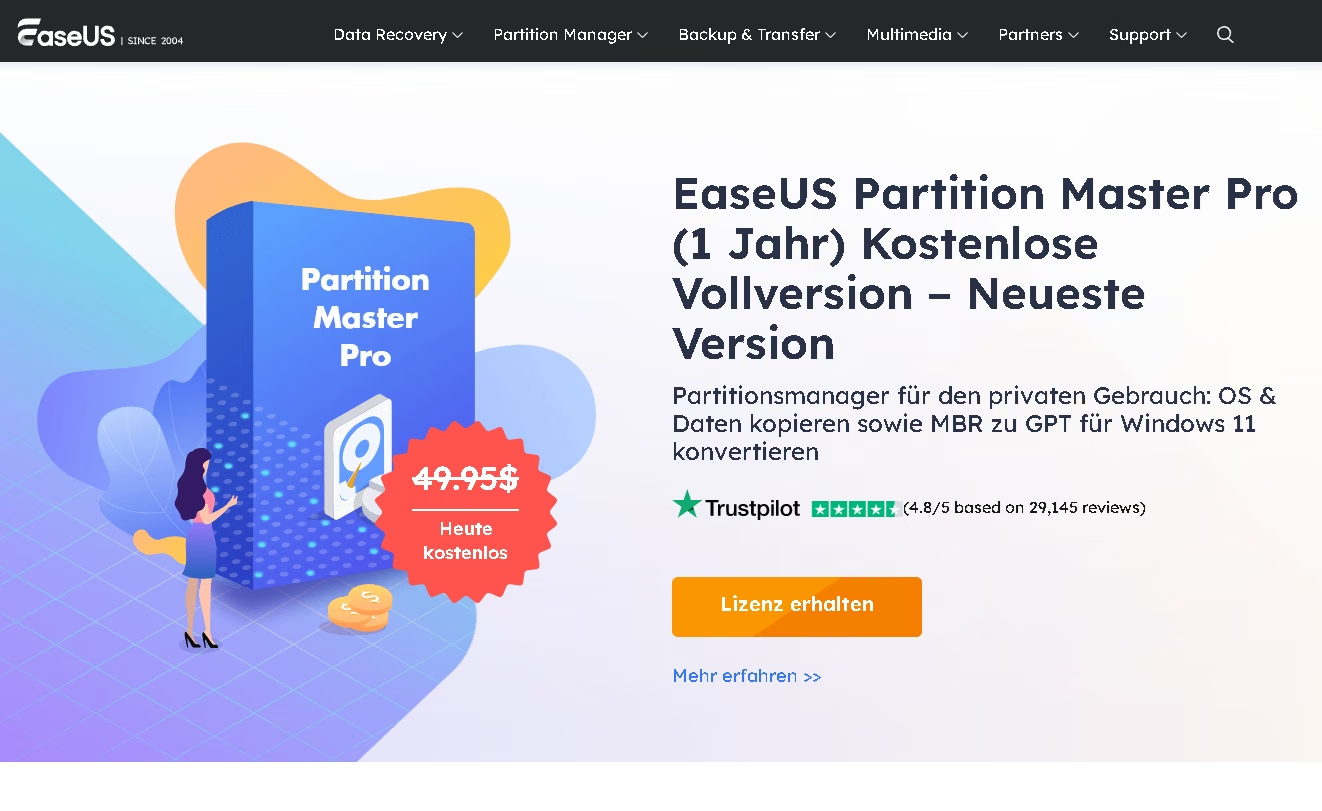
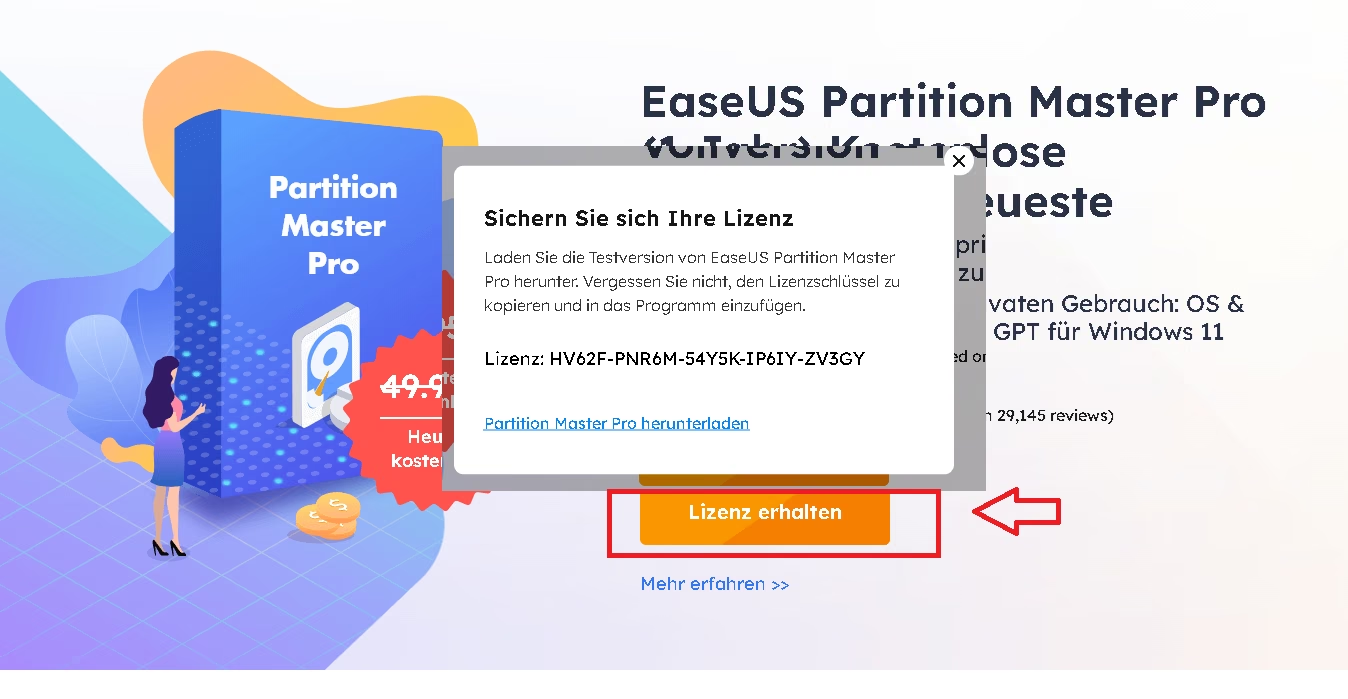
Click the orange Lizenz erhalten (“Get licence”) button. A pop-up titled Sichern Sie sich Ihre Lizenz shows your licence code.
Copy the code and keep it handy.
🔑 Licence code (tested 27 October 2026)
HV62F-PNR6M-54Y5K-IP6IY-ZV3GY
EaseUS can change the code at any time. If this one doesn’t work, copy the current code from the giveaway page.
Next, install the program and activate it:
4Download the EaseUS Partition Master installer using the button below. It’s the free edition’s online installer; the licence code turns it into Pro.
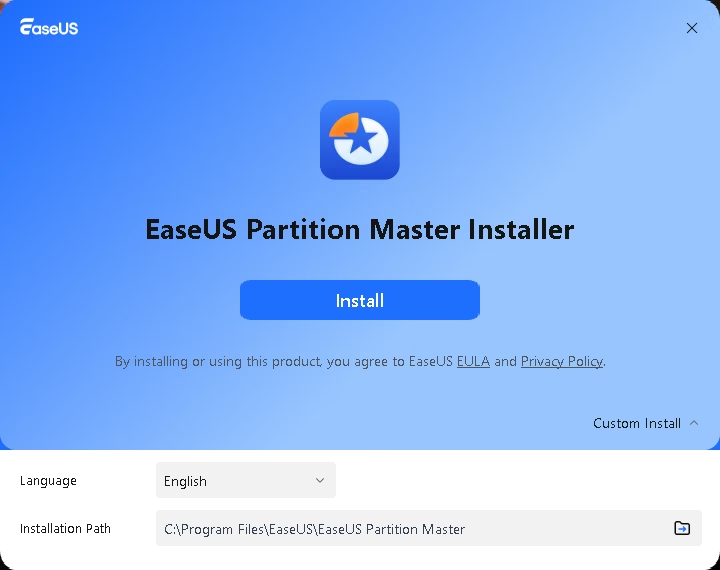
Run the installer and click Install. If you want a different folder, open Custom Install first. The installer then downloads the program files (about 145 MB in our test).
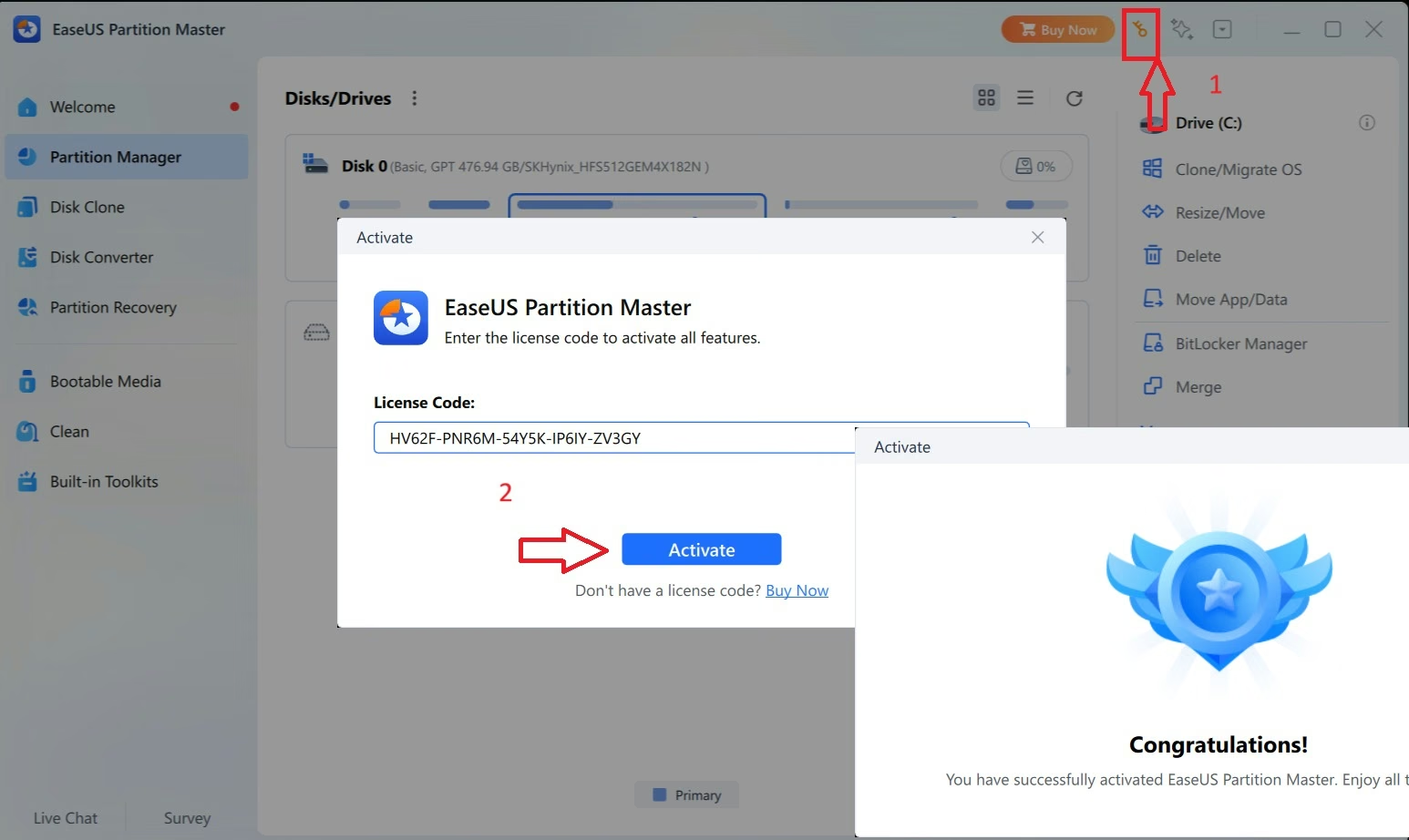
Launch Partition Master and click the key icon in the top-right corner, next to Buy Now.
Paste the licence code and click Activate. You’ll see a Congratulations! message, and a Pro badge appears next to the app name.
⚠️ Good to Know About This Licence
- It’s a one-year licence. After it expires, Pro-only features may no longer be available unless you renew. Changes you’ve already made to your partitions aren’t reversed when the licence expires.
- Everyone gets the same code from the page. EaseUS doesn’t say how many activations it allows, or whether the code works again after you reinstall Windows. Save a copy of the code, and check the giveaway page for the current terms.
- Pro is EaseUS’s edition for home users. The giveaway doesn’t include the Server or Technician editions.
What’s New in Partition Master 20
EaseUS released version 20.0 on 3 March 2026. The headline change is full exFAT support. exFAT is the file system most USB sticks, SD cards and external drives use, because it works on Windows, macOS, cameras and game consoles. Until now, most partition managers could only format exFAT drives. Version 20 can also resize, move, merge, split, wipe and clone them, according to EaseUS.
💾 Full exFAT management
Create, format, resize and reorganise exFAT partitions, plus sector-level cloning.
🔄 FAT32 to exFAT without formatting
Removes FAT32’s 4 GB file-size limit on a USB drive without wiping it.
⚡ One-Click Partitioning
Splits a new, completely unallocated disk into partitions in one step.
✨ Improved AI Assistant
The sparkle icon in the title bar opens a helper that explains what to do. It first appeared in version 19.9.
🛡️ Safer workflow
A preview before changes are applied, and risk warnings on certain operations.
Key Features of EaseUS Partition Master Pro
Partition Manager: Resize, Merge, Hide and Wipe
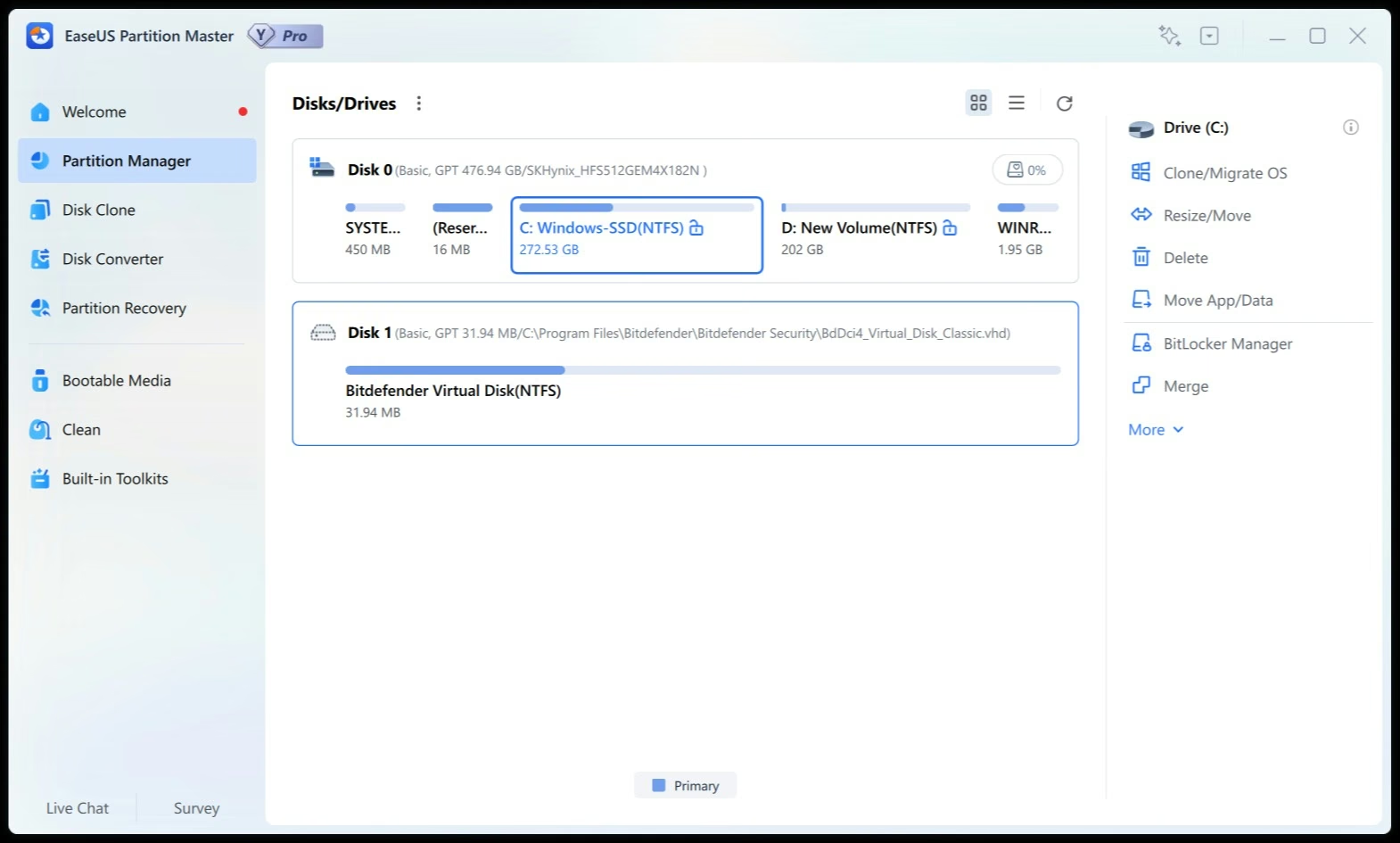
The main screen shows every disk and its partitions as bars, with the free space on each. Select a partition and the right-hand panel lists what you can do with it: Resize/Move, Delete, Clone/Migrate OS, Move App/Data, BitLocker Manager and Merge, plus more options under More.
- Extend drive C: when it runs out of space, by taking free space from another partition.
- Merge partitions if your drive was split into too many small pieces.
- Hide a partition so it disappears from File Explorer until you unhide it in Partition Master. Handy for files only you should see, though it isn’t encryption.
- Wipe a drive by overwriting it so the old data can’t be recovered. Useful before you sell or give away a PC.
- Move App/Data shifts large programs and folders off a full C: drive.
In our test, a Bitdefender virtual disk (31.94 MB) also showed up as Disk 1. That’s normal if you use Bitdefender. Just make sure you’ve selected the right disk before applying any changes.
Disk Clone and OS Migration
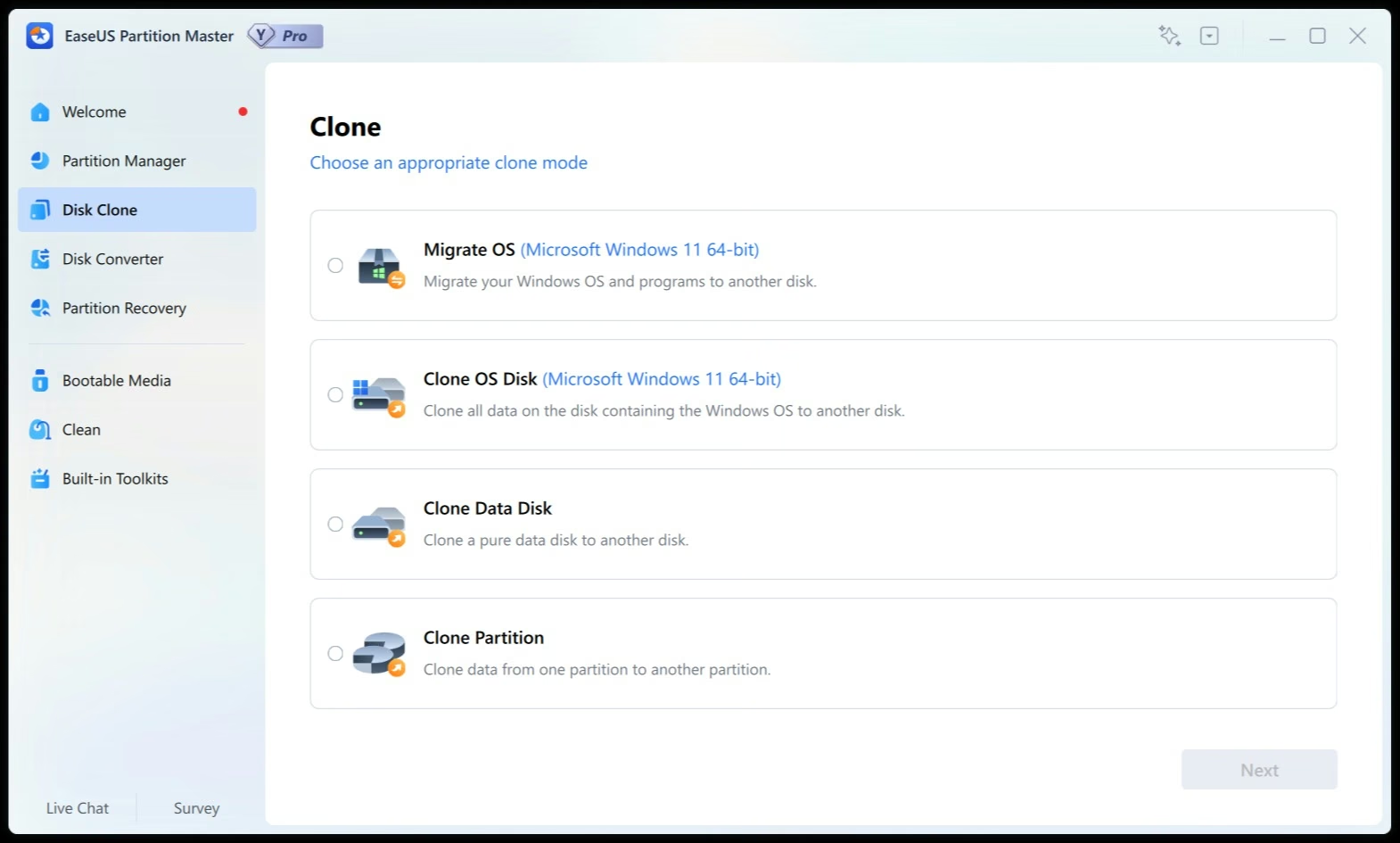
Upgrading to a bigger or faster SSD is the most common reason people buy this program. The Disk Clone section offers four modes:
Migrate OS
Move Windows and your installed programs to another disk, so the new SSD boots just like the old one.
Clone OS Disk
Copy the entire Windows disk, including the boot partitions, to another disk.
Clone Data Disk
Copy a disk that has no Windows installation on it.
Clone Partition
Copy a single partition to another partition.
Disk Converter: MBR to GPT for Windows 11
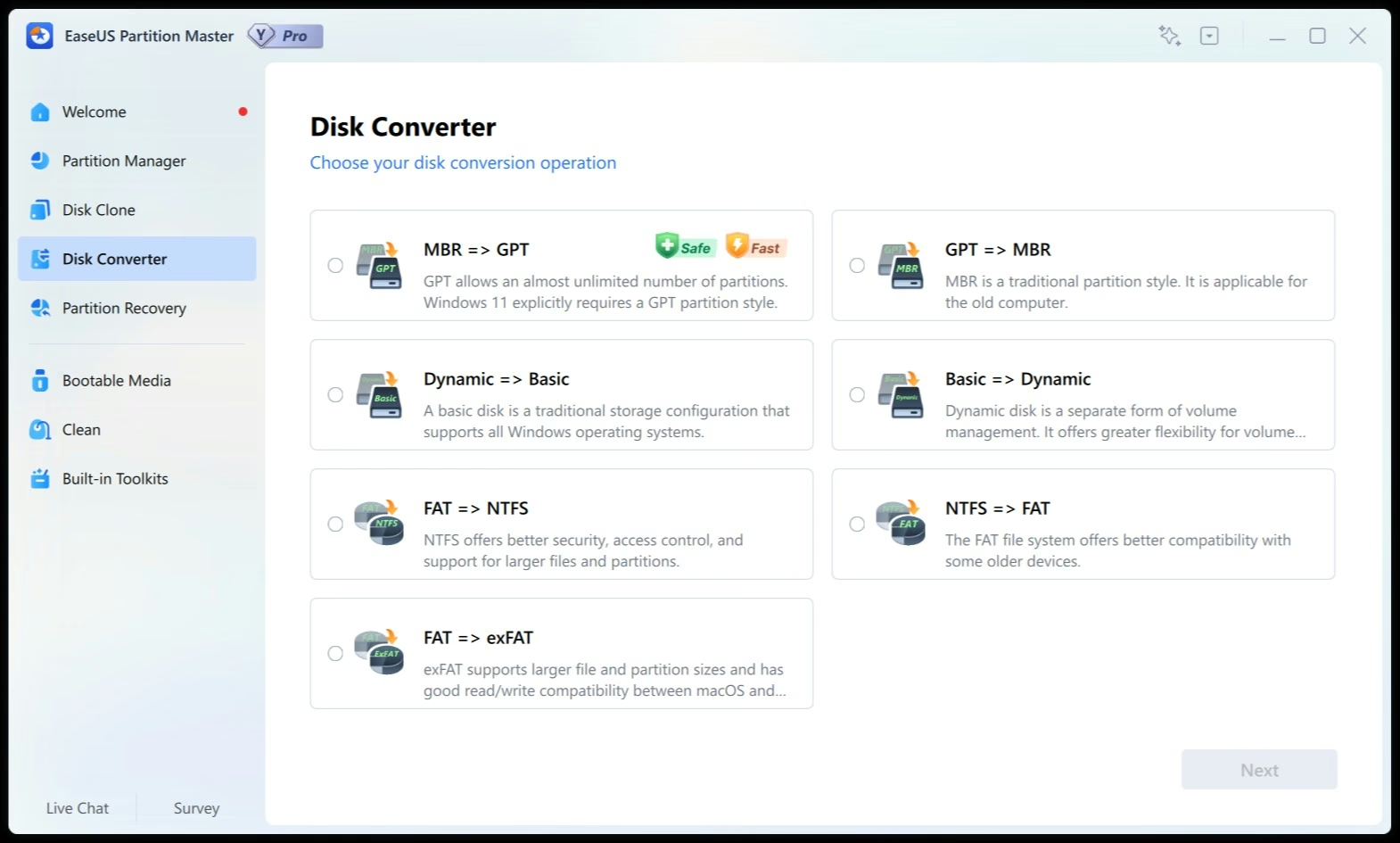
Windows 11 normally boots from a GPT disk in UEFI mode. If your older PC still uses MBR, the MBR => GPT option converts the disk, and EaseUS says it keeps your data in place. That’s not a guarantee against a failed conversion, so back up first. The Disk Converter also handles GPT to MBR, Dynamic to Basic (and back), FAT to NTFS, NTFS to FAT and FAT to exFAT. Each option includes a short explanation of what the format is good for, which helps if you’re not sure which one you need.
After converting your system disk to GPT, check that your PC’s firmware is set to UEFI mode instead of Legacy/CSM before you restart, or Windows won’t boot. Keep in mind that GPT is only one of Windows 11’s requirements. Your PC also needs TPM 2.0, Secure Boot and a supported processor, so converting the disk alone won’t make an unsupported PC compatible.
Partition Recovery
Deleted a partition by mistake, or a drive suddenly shows up as “unallocated”? Partition Recovery scans the disk for lost partitions and restores them along with their data, as long as nothing new has been written over that space. For individual deleted files, see our Wise Data Recovery Pro giveaway.
Bootable Media and WinPE
If Windows won’t start, you can still run Partition Master from a rescue drive. The Bootable Media section has three options:
- Create bootable media: builds a WinPE USB stick, DVD or CD that starts Partition Master automatically.
- Enable Partition Master PreOS: adds a WinPE entry to your PC’s boot menu, so you don’t need a USB stick.
- Burn ISO: downloads a Windows ISO and writes it to a USB drive or CD.
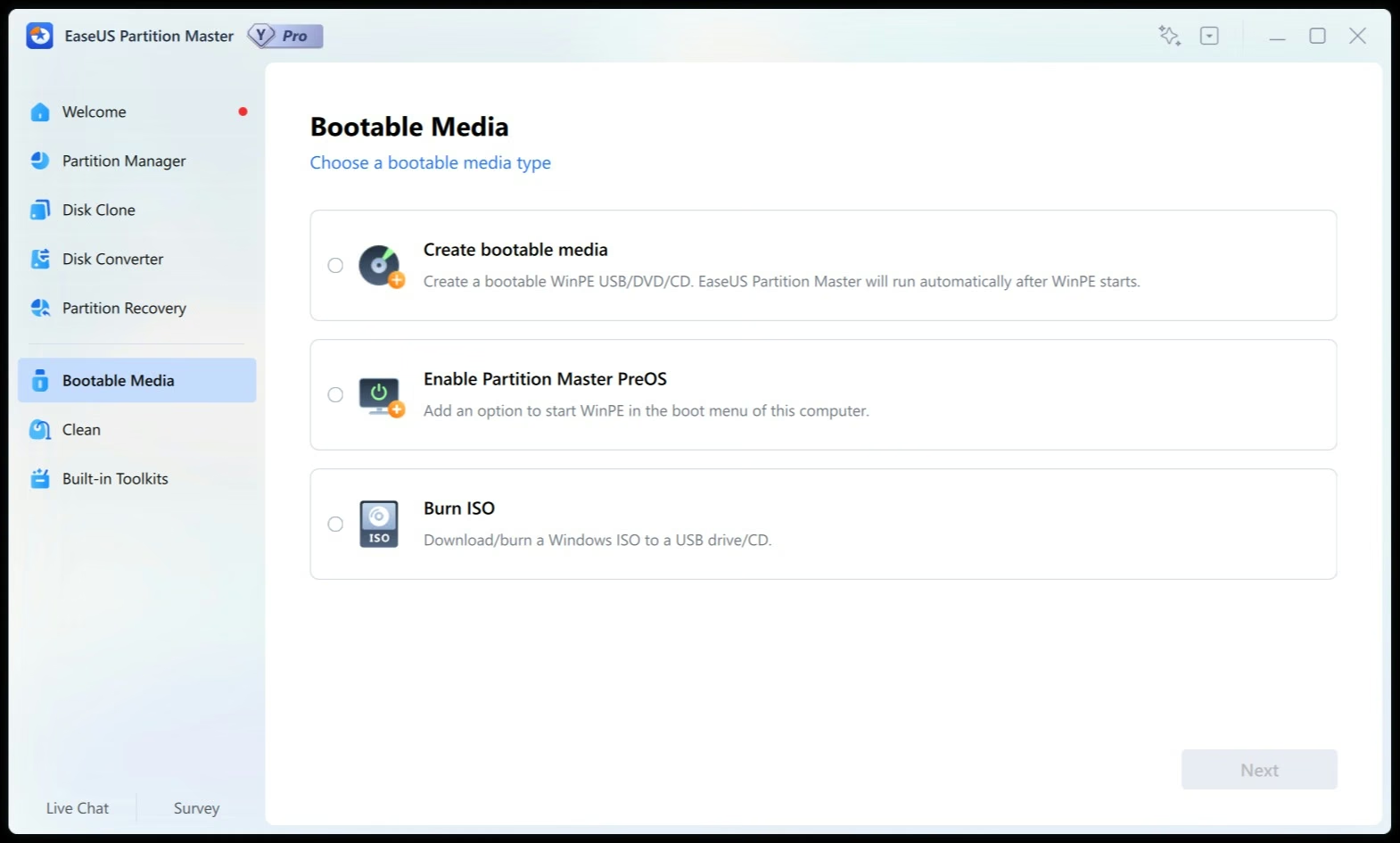
We suggest creating a rescue USB stick right after you activate the licence. It’s much easier to make one while Windows still works.
Built-in Toolkits
The Built-in Toolkits menu collects smaller maintenance tools. According to EaseUS, these include data migration, a bad-sector scan (Surface Test), enabling or removing write protection, rebuilding the MBR, and boot repair for PCs that won’t start. The Clean section helps you free up disk space.
Before You Resize a Partition
Partitioning is safe with a good tool, but a power cut halfway through can still cost you data. EaseUS recommends a few precautions, and we’d add one more:
- Back up important files first. A free tool such as AOMEI Backupper or MiniTool ShadowMaker takes care of this.
- Close all open programs. Otherwise Partition Master may find the partition locked by another app.
- Expect a restart when you change the system partition (C:). The resize then runs in boot mode before Windows loads.
- Plug in your laptop and don’t interrupt the process once it starts.
Free vs Pro: What the Licence Unlocks
| Feature | Free | Pro (giveaway) |
|---|---|---|
| Create, delete, format, resize partitions | Yes | Yes |
| MBR to GPT conversion | Data disks (per EaseUS) | Yes |
| Migrate OS to HDD/SSD | Listed as Pro | Yes |
| Partition Recovery | Listed as Pro | Yes |
| WinPE bootable media | Listed as Pro | Yes |
Based on EaseUS’s product pages. EaseUS doesn’t publish a clear feature-by-feature grid. Its Pro feature list also includes Basic to Dynamic conversion, Rebuild MBR and Disk Surface Test, but other parts of the site describe these without naming an edition, so we can’t confirm whether the free edition has them.
Pros and Cons
👍 Pros
- Clean, beginner-friendly interface that’s far easier than Windows Disk Management
- OS migration and disk cloning make SSD upgrades simple
- Converts MBR disks to GPT for Windows 11, with EaseUS saying data stays in place
- Version 20 adds full exFAT resizing and cloning
- Includes WinPE rescue media and partition recovery
👎 Cons
- One-year licence only, not lifetime
- The giveaway page is in German
- The online installer downloads around 145 MB
- Everyone shares one code, and EaseUS doesn’t state an activation limit
- Windows only
📊 Our Verdict
EaseUS Partition Master Pro covers almost everything a home user needs to do with a disk: extend a full C: drive, merge partitions, move Windows to a new SSD, convert to GPT for Windows 11, and rescue a PC that won’t boot. Version 20’s exFAT support is a real bonus if you use external drives. The licence lasts only a year, but most of these jobs are one-off tasks, so a year is plenty. If you’re planning an SSD upgrade or a Windows 11 move, grab this licence now.
Frequently Asked Questions
Is EaseUS Partition Master Pro really free?
Yes. EaseUS hands out a free one-year Pro licence code on its official giveaway page. You don’t need to register or enter payment details. Just copy the code and activate it in the program.
How long does the giveaway licence last?
One year from activation, according to the giveaway page. After that, the Pro features lock unless you buy a renewal. Partitions you created or changed stay as they are.
Which version do I get?
The installer downloads the latest release. At the time of writing that’s Partition Master 20, released in March 2026, with full exFAT support and one-click partitioning.
The giveaway page is in German. Is that a problem?
No. Click the orange “Lizenz erhalten” button to reveal the code. The installer defaulted to English in our test, and you can change the language under Custom Install.
Can I convert MBR to GPT for Windows 11 without losing data?
Yes. EaseUS says its Disk Converter > MBR => GPT option keeps your data, but back up first in case anything goes wrong. After converting a system disk, set your PC’s firmware to UEFI mode before restarting. Your PC must also meet Windows 11’s other requirements, such as TPM 2.0 and Secure Boot.
Can I move Windows to a new SSD with it?
Yes. Go to Disk Clone > Migrate OS to move Windows and your programs, or choose Clone OS Disk to copy the whole disk. Both are Pro features included in this giveaway.
Is it safe to resize partitions?
Generally yes, but always back up important files first. Close open programs, keep laptops plugged in, and don’t interrupt the process. Changes to drive C: need a restart.